반응형
저는 ArgoCD를 Helm 차트에서 다운로드를 받았습니다.
그래서 values.yaml 파일에서 설정을 변경하고 적용을 하도록 하였습니다.
ArgoCD에서 애플리케이션 배포가 완료되면 webhook을 사용하여 Google-chat으로 알림 보내는 것을 해보겠습니다.
우선 알림 동작 방식을 먼저 알아보겠습니다.
1. GitHub Repository에 변경된 Yaml 파일 Push or Manual Sync
        ↓
2. ArgoCD에서 Application과 연결된 Github Repository의 상태 변화 감지 후 Sync 동기화
        ↓
3. Notifications Controller가 변경되는 동작 감지
        ↓
4. Trigger 조건 평가
        ↓
5. Trigger 매칭 시 Template 적용
        ↓
6. Recipient 결정 (Subscriptions)
        ↓
7. Service 통해 알림 전송 (Google Chat, Slack, Email 등)
위 과정에서 이번에 설정을 해줘야 할 부분은 4 ~ 7번 과정을 values.yaml 파일에서 입력 해주어야 합니다.
이제 순서대로 설정을 해보도록 하겠습니다.
Trigger 조건 설정
우선 Trigger 조건 평가를 위해 Trigger 조건을 설정 해주도록 하겠습니다.
Trigger 조건은,
- 배포가 정상적으로 되었을 때
- health 상태가 Healthy 일 때
- sync 상태가 Synced 일 때
- 마지막으로 알림이 지속적으로 가지 않도록 새로운 배포가 실제 발생한 직후에만 알림 발생 하도록 설정
위 조건을 만족할 때, Trigger가 동작하도록 설정해보도록 하겠습니다.
# values.yaml 파일을 열어줍니다.
# 가장 먼저 notifications.enabled를 true로 설정 해줍니다.
# 그 이후에 triggers 조건 설정
notifications:
  enabled: true

  triggers:
    trigger.good-deployed: |
      - description: 애플리케이션이 배포가 정상적으로 되었을 때 보내는 알람 입니다.
        send:
        - app-deployed # 여기서 Template의 이름을 넣어주어야 합니다.
        when: app.status.operationState.phase == 'Succeeded' and app.status.health.status == 'Healthy' and app.status.sync.status == 'Synced' and time.Now().Sub(time.Parse(app.status.operationState.finishedAt)).Seconds() < 200
Trigger 매칭 시 Template 적용
이제 Trigger가 동작하고 난 후 Google-chat에 보내줄 알림의 Template을 생성해주도록 하겠습니다.
# values.yaml 파일을 열어줍니다.
# 실제로 알림을 받을 내용을 Template에서 정의 해줍니다.

notifications:
  templates:
    template.app-deployed: |
      googlechat:
        cardsV2: |
          - header:
              title: "[ArgoCD] 배포 성공 🎉"
              subtitle: "어플리케이션: {{.app.metadata.name}}" # 배포되는 어플리케이션의 이름 출력
              imageUrl: "https://raw.githubusercontent.com/cncf/artwork/master/projects/argo/icon/color/argo-icon-color.png"
          - sections:
            - widgets:
              - buttonList:
                  buttons:
                    - text: "🔗 애플리케이션 보기"
                      onClick:
                        openLink:
                          url: "{{.context.argocdUrl}}/applications/{{.app.metadata.name}}" # 배포된 애플리케이션으로 바로 갈 수 있는 링크 생성
Recipient 결정 (Subscriptions)
해당 과정에서 앞서,
Google-chat에서 webhook을 생성을 하고 ArgoCD의 Secrets에 넣어주는 설정을 해주어야 합니다.
notifications:
  secret:
    create: true
    items:
      google-chat-webhook-url: <Google-Chat의 Webhook URL을 넣어주면 됩니다.>

  notifiers:
    service.googlechat: |
      webhooks:
        myspace: $google-chat-webhook-url
이제 Recipient 설정을 해줍니다.
# values.yaml 파일을 열어줍니다.

notifications:
  subscriptions:
    - recipients:  # 여기서 어떤 걸 사용할지 정해줍니다. (ex| Slack, email, webhook 등)
      - googlechat:myspace  # 앞서 설정한 notifiers의 설정을 넣어주면 됩니다.
      triggers:
      - good-deployed  # 앞서 생성한 트리거의 이름을 넣어주면 됩니다.
결과 확인
helm upgrade 명령어를 사용해서 변경된 values.yaml 파일의 내용을 적용 시켜주고 알림이 오는지 확인해보면,
정상적으로 알람이 오는 것을 확인 할 수 있습니다.
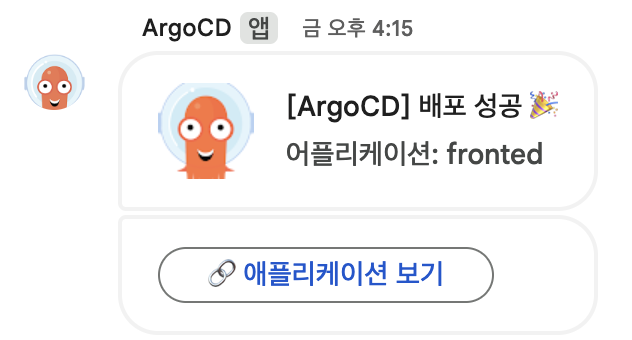
이상 입니다.
반응형
'Pipeline' 카테고리의 다른 글
| “Helm + ArgoCD + ApplicationSet으로 구축하는 PR Preview 환경 (2편: Helm 차트 구성)” (2) | 2025.09.12 |
|---|---|
| “Helm + ArgoCD + ApplicationSet으로 구축하는 PR Preview 환경 (1편: 아키텍처)” (0) | 2025.09.11 |
| Blue - Green 배포 실습 해보기 (1) | 2024.12.20 |
| Github Action 원하는 환경에서 Workflow 작업 해보기 (1) | 2024.12.19 |
| Github Action 이란 ? (2) | 2024.12.19 |